Step-by-step warehouse loading
The next box, on the loader's phone.
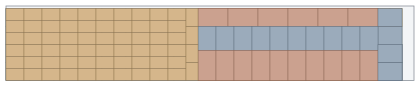
The plan reaches the warehouse team's phones as a link: the next box, its position and orientation on screen. Nothing to install, no account. For a saved plan the office follows the loading live.
- Front wall
- 6.00 m
- Right wall
- 0.00 m
- Floor
- 2.30 m
- 1
Send the plan to the warehouse
Copy the warehouse link from the Share menu or scan the QR code on the report cover. The link carries the plan itself; the warehouse team needs no account.
- 2
The phone shows the next box
Each step shows the box's name, size, orientation and position: how far from the front wall, the right wall and the floor. Consecutive boxes of the same product are confirmed in one go.
- 3
The office follows the loading live
For a saved plan every step is reported to the office and a photo of each finished vehicle lands in the archive. When every vehicle is done, a webhook goes to the ERP.
Everything the warehouse team needs
The warehouse screen is built for large type, large buttons and one job: putting the next box in the right place.
Four languages
Turkish, English, German and Russian; each loader picks their own.
Find the box
Type the large sequence number on the carton or scan the label's QR code: the box's position and step open.
Four views
Close-up, whole vehicle, from the doors and from above. The next box is highlighted in place.
Even without signal
Without a connection progress is kept on the phone; loading carries on where it stopped.
Sequence labels with QR
A5 pallet labels with a vehicle sketch, 16 carton labels per A4 sheet. The forklift driver reads the number from a distance.
Time left
Estimated time left from the loading rates set by the planner; the loader's name is recorded.
Frequently asked questions
Does the warehouse team need to install an app?
No. Warehouse mode is a link that opens in the phone's browser and can be added to the home screen. No account or password is needed.
What happens to old labels if the plan changes?
When the plan changes the sequence numbers change too; reprint the labels and send the new link. Warehouse mode warns if an old label is scanned against the new plan.
Which plan includes loading tracking?
Every plan. Step-by-step loading on a phone, Find the box and labels are in all plans; live reporting to the office and vehicle photos work when the plan is saved on the server.
How is the loading sequence decided?
The engine builds the sequence physically: each box comes after the boxes below and in front of it. With multi-stop delivery, the load that comes off first stays nearest the doors.
Save your plan for live tracking.
The warehouse link is in every plan. Live tracking from the office and vehicle photos come with saved plans, ERP notifications with the Business plan.